If you are reponding to a post you must first write your response or at least type in “editing” and then post it and and go into HZ edit mode for that post by clicking on the little pencil at the top of the post. If you are starting a new thread you begin in edit mode so you don’t need to go through that hoop.
Go to Google and click on the “images” option. Do your search and find an image you like. Click on it and it will appear enlarged on the right as shown below. If you just try to copy an image without this step you will end up with a thumbnail. Right click on the enlarged image and select “copy image address”.

In HZ edit mode select the “img” option and paste the image’s address. Click OK a couple times and there you are.
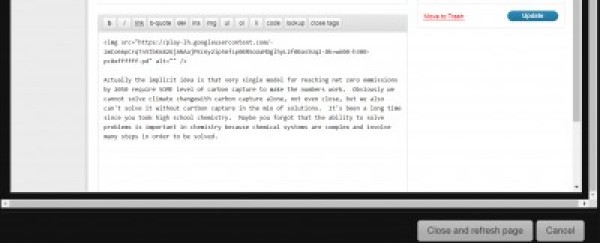
HOWEVER, some online images are very large and HZ does not auto scale them to fit the page. So you sometimes end up with a massive image in the post that is impractical to view. Solution:
First, save the image from google to your computer. Most images default to jpg, but if it is a WEP you will need to “copy image” and paste it to Paint (if you don’t have Photoshop) then save as a jpg. Paint is in your computer accessories.
Back on the Zone, click HZ Dashboard at the top left. Select Media on the left.
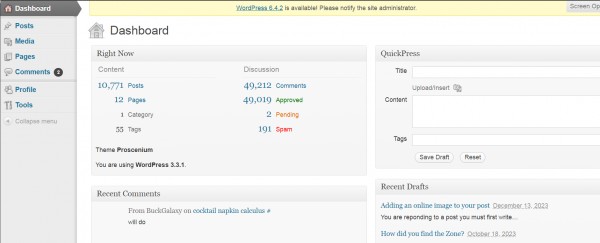
Click on the “Add New” link near the top of the page and upload the image from your computer.
Click “Edit Image” right below the image thumbnail. On the right click “Scale Image” Change the first number to no higher than 600. The aspect is locked so both numbers will change. Click “Save all changes” at the bottom. Copy the url and paste it in the message as described earlier.
-
100%